




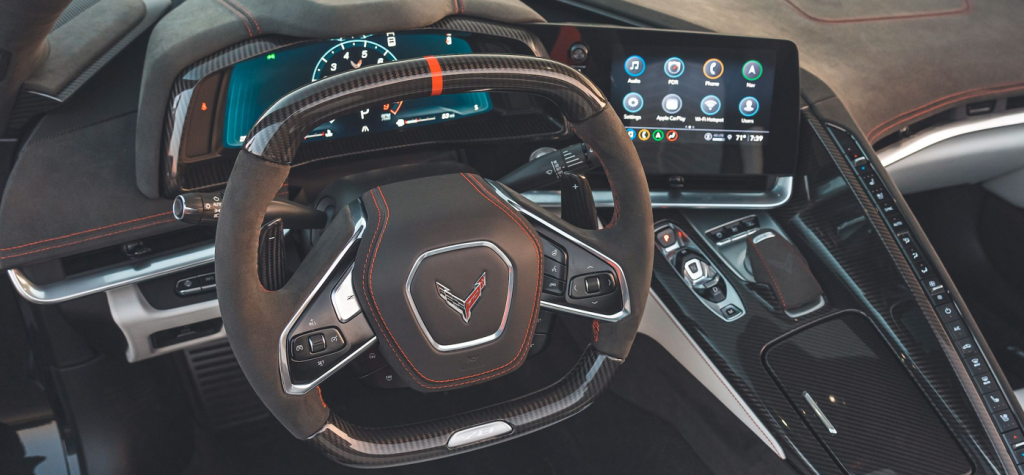
Modern Chevrolet and GMC vehicles come equipped with advanced infotainment systems that make driving more enjoyable and convenient. You can seamlessly connect your smartphone to access maps, music, calls, messages, and more—all while keeping your focus on the road. This complete guide to Apple CarPlay and Android Auto walks you through everything you need to know, from setting up the systems to using advanced features, troubleshooting problems, and maximizing your driving experience.
What Are Apple CarPlay and Android Auto?
Apple CarPlay and Android Auto are smartphone integration platforms that display your favorite apps directly on your Chevrolet or GMC infotainment screen. These tools provide a familiar smartphone-like interface and support hands-free control via Siri or Google Assistant.
Benefits for Chevy and GMC Owners
- Hands-Free Convenience: Make calls, send texts, and control apps using only your voice.
- Increased Safety: Keep your hands on the wheel and eyes on the road.
- Familiar Interface: Enjoy an interface that looks and feels like your smartphone.
- Wide App Compatibility: Use navigation, music streaming, messaging, and podcast apps.
- Regular Updates: Features improve automatically with smartphone software updates.
Setting Up Apple CarPlay
Wired Setup (Step-by-Step)
- Turn on your Chevrolet or GMC vehicle and infotainment system.
- Plug your iPhone into the USB port using a certified Lightning cable.
- Accept any prompts on both your iPhone and the infotainment display.
- The CarPlay interface will launch automatically.
Wireless Setup
- Confirm that your vehicle supports wireless CarPlay.
- Enable Bluetooth and Wi-Fi on your iPhone.
- Pair your iPhone with your vehicle’s infotainment system.
- Approve the prompts to start wireless CarPlay.
Pro Tip: If multiple passengers frequently connect their phones, pre-pair devices to easily switch between users.
Setting Up Android Auto
Wired Setup (Step-by-Step)
- Start your Chevrolet or GMC and ensure the infotainment display is on.
- Connect your Android phone using a high-quality USB cable.
- Install or update the Android Auto app if prompted.
- Follow the instructions on your phone and infotainment screen.
Wireless Setup
- Verify that your vehicle supports wireless Android Auto.
- Enable Bluetooth and Wi-Fi on your phone.
- Pair your phone with the infotainment system.
- Accept the prompts to begin using Android Auto wirelessly.
Pro Tip: Closing unused apps on your phone before connecting can help improve speed and reliability.
Everyday Features for Chevy and GMC Drivers
Navigation
Apps like Apple Maps, Google Maps, and Waze provide turn-by-turn directions, traffic alerts, lane guidance, and alternate routes. Use voice commands such as “Hey Siri, give me directions to Russell Barnett Chevrolet GMC” or “Hey Google, find the nearest restaurant.”
Music & Entertainment
Enjoy streaming services like Spotify, Apple Music, Pandora, Amazon Music, and Audible. Steering wheel buttons let you skip tracks, pause, or adjust volume without distraction.
Communication
Stay connected safely with hands-free calls and texts. Commands like “Hey Siri, text Emily I’ll be there soon” or “Hey Google, call Dad” make it easy to communicate.
Calendar & Reminders
CarPlay and Android Auto can sync with your calendar and reminders, letting you view upcoming events or get notified of appointments while you drive.
Advanced Tips for Power Users – Now for the COMPLETE guide to Apple CarPlay and Android Auto!
- Rearrange App Icons: Place your most-used apps in convenient spots.
- Create Voice Shortcuts: Save time with custom commands for navigation and playlists.
- Use Split-Screen Mode: On compatible vehicles, display navigation and music controls together.
- Enable Do Not Disturb Mode: Prevent notifications from distracting you while driving.
- Pair Wireless CarPlay/Android Auto with Wireless Charging: Keep your cabin organized and clutter-free.
- Explore Third-Party Apps: Apps like WhatsApp, Telegram, and Overcast enhance your options for messaging and entertainment.
Top 10 Apps Worth Downloading
- Google Maps: Reliable navigation with real-time traffic updates and offline maps.
- Waze: User-reported road hazards and crowd-sourced traffic information.
- Spotify: Access millions of songs, curated playlists, and podcasts.
- Apple Music: Perfect for iPhone users with existing music libraries.
- Audible: Listen to audiobooks during commutes or road trips.
- Apple Podcasts / Podcast Addict: Stay updated on your favorite shows.
- WhatsApp: Voice-controlled messaging and calling.
- Amazon Music: Another great option for music streaming.
- Telegram: Secure messaging with voice chat support.
- iHeartRadio: Stream radio stations, talk shows, and podcasts live.
Each app provides unique features for different driver preferences—making your daily drives or long trips more enjoyable.
Expanded FAQ
Do all Chevrolet and GMC models support CarPlay and Android Auto?
Most late-model Chevrolet and GMC vehicles with the latest infotainment systems are compatible. Contact Russell Barnett Chevrolet GMC to verify compatibility.
Will I need a specific cable for setup?
Yes, a certified USB cable is strongly recommended for the most stable wired connection.
Does it use my data plan?
Yes. Navigation, streaming, and app usage consume mobile data.
Why is my connection not working?
Check that your phone and infotainment software are updated. Try a new cable or restart both devices.
Can multiple devices be paired?
Yes. You can pair multiple phones and easily switch between them.
How do I update my vehicle’s infotainment software?
Updates can be performed at home or during a service appointment at Russell Barnett Chevrolet GMC.
Why does my connection drop frequently?
Poor-quality cables or wireless interference may cause issues. Try wired mode for better stability.
Can I add new apps to CarPlay or Android Auto?
Only apps approved for in-vehicle use will be available. Check the Apple App Store or Google Play Store for compatible apps.
Troubleshooting Tips
- Device Won’t Connect: Restart both your phone and infotainment system, or use a certified cable.
- Lag or Delays: Close background apps or switch to wired mode.
- Apps Won’t Load: Update apps on your phone or reinstall them.
- Black Screen or Errors: Disconnect and reconnect your phone, or restart the infotainment system.
Why Visit Russell Barnett Chevrolet GMC?
At Russell Barnett Chevrolet GMC, we can:
- Perform OEM infotainment software updates for better performance.
- Help you set up Apple CarPlay and Android Auto.
- Provide tips and demonstrations to help you get the most out of your system.
We hope you’ve enjoyed this complete guide to Apple CarPlay and Android Auto! Now it’s time to take it to the next level!
<<< CLICK HERE TO SCHEDULE YOUR NEXT SERVICE APPOINTMENT >>>

Or Visit Us Today
Stop by Russell Barnett Chevrolet GMC at 1981 Hillsboro Blvd, Manchester, TN 37355, or call 931-967-4513. Let our experts show you how to take full advantage of Apple CarPlay and Android Auto in your Chevrolet or GMC.
<<< Click here for more information about Apple CarPlay – straight from the source >>>
<<< Click here for more information about Android Auto – straight from the source >>>
Connect with us


Categories
